
Review lines before they reach Lightspeed
Read the review screen, see what Reorder, New variant and New product mean, and approve, correct or reject each line before you send.
What the review shows
Open a document from Purchase Orders. Each line shows the style, product, quantity, cost, MSRP, total and Rebridge's decision.
The summary above the lines counts what needs you, for example "6 lines · 2 to check · 3 reorders · 1 new". Next to check jumps to the next line that needs you.
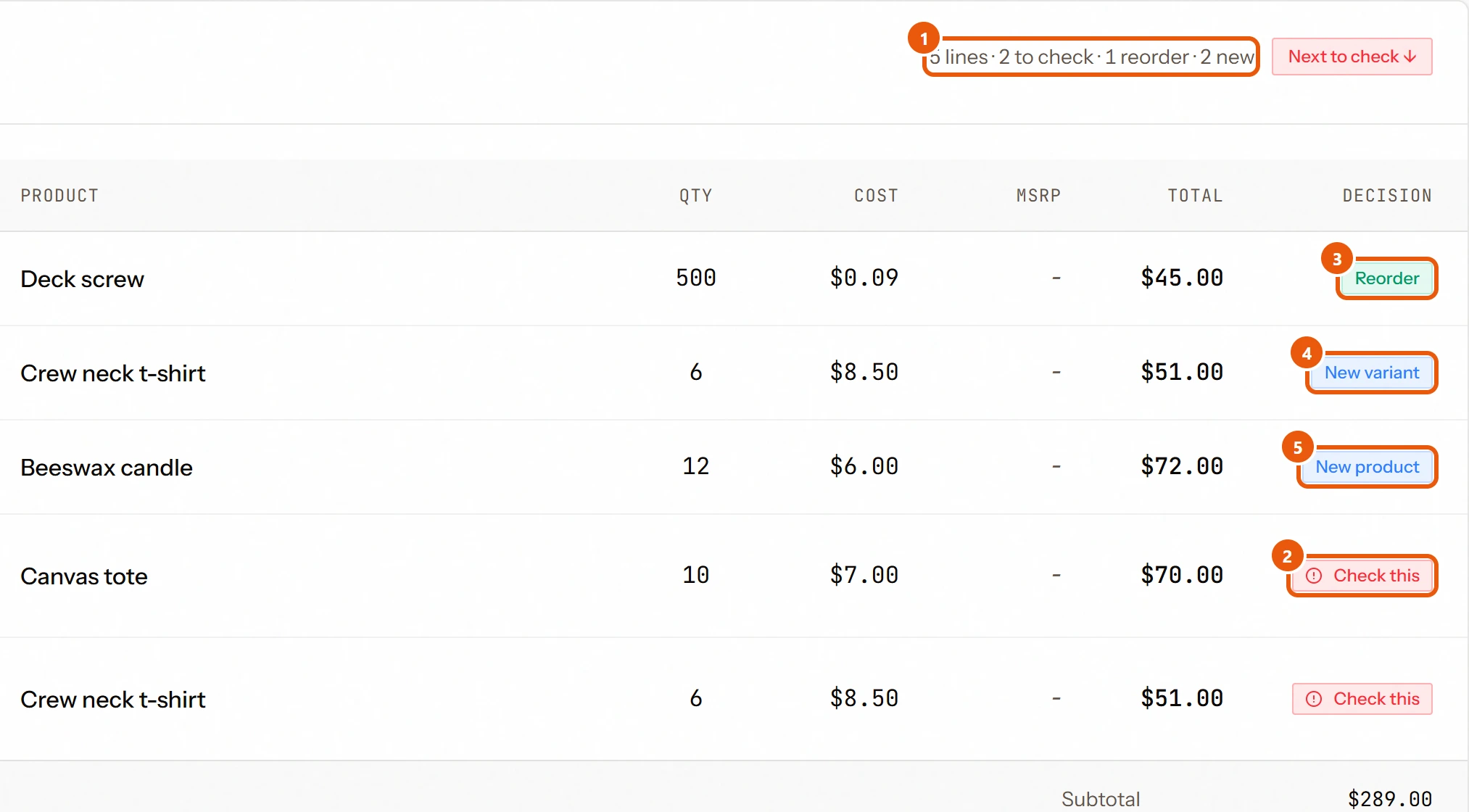
- 1Where you stand, at a glance
- 2Check this: these need you
- 3Reorder: more of something you carry
- 4New variant: a new version of something you carry
- 5New product: something you've never carried
What each decision means
- Reorder: a product you already carry. The order adds stock to it.
- New variant: another size, color or finish of a product you already carry. It is added to that product instead of becoming a duplicate.
- New product: something you have not carried before. Rebridge sets it up the way your catalog is already organized.
- Check this: Rebridge is not sure and needs you to decide.
Lines Rebridge is certain about can arrive already marked Auto-Approved. You can still open and change them until the order is sent.
Open a line
Click a line to open its card. The message at the top says what Rebridge decided, for example Ready. Matched to your existing product. In the card you can:
- edit the product name
- change the decision between New Product, New Variant and Reorder
- pick a category
- check each attribute, marked from your catalog, from this invoice or needs you
- correct the cost, the MSRP, and the quantity for each size or variant
The line that starts On approve: says exactly what will happen in Lightspeed. Show everything the system read and decided opens the full detail.
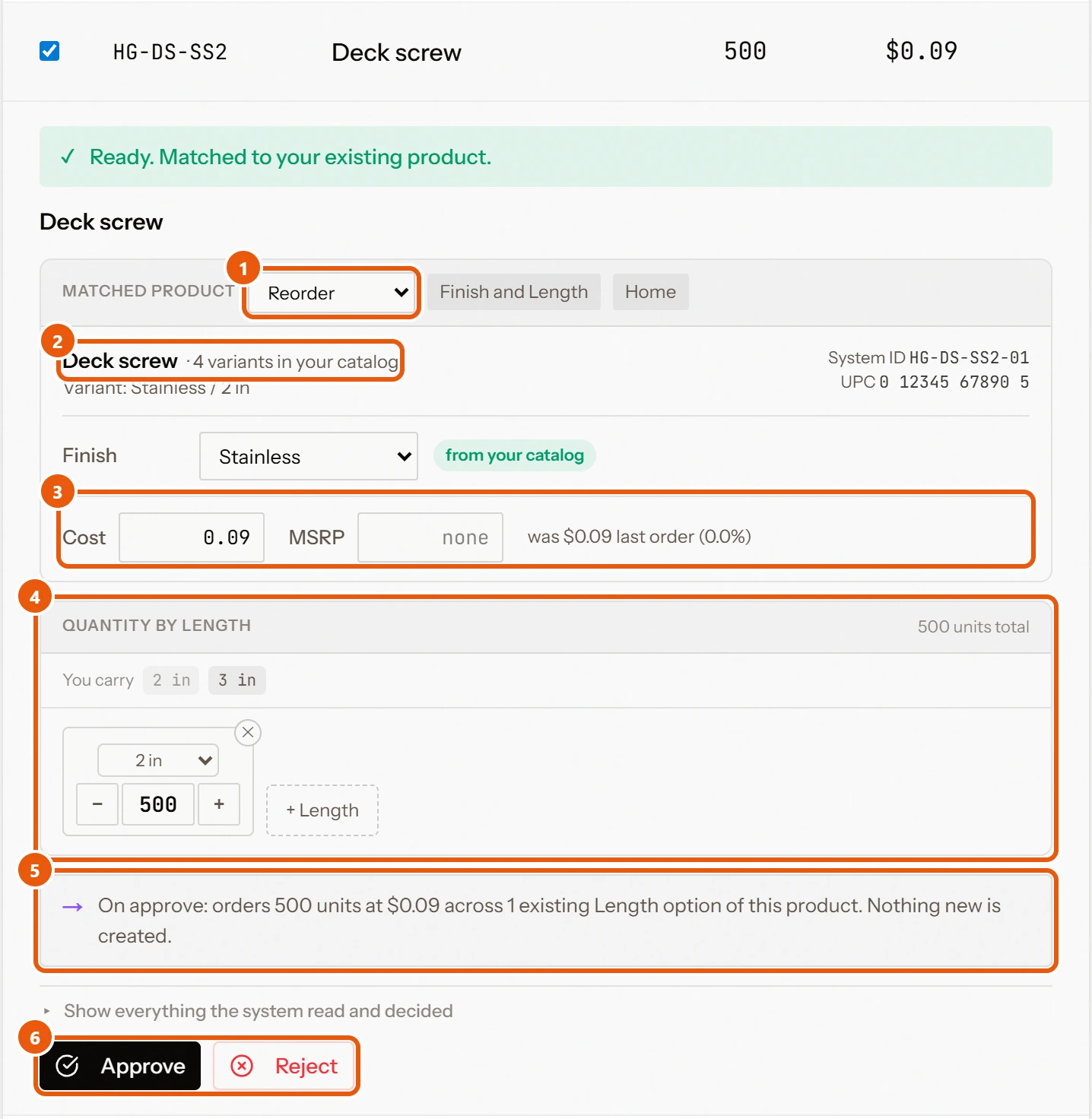
- 1What kind of line this is
- 2The product Rebridge matched it to
- 3Cost and retail price
- 4How many you're ordering
- 5Exactly what approving will do
- 6Say yes, or leave the line off
When Rebridge is not sure which product it is
The card lists the closest products in your catalog. Pick one, use Search another product, or choose None of these, it's a new product.
To change the match on any line, tick it and choose Match Products, then search by SKU, product name or description.
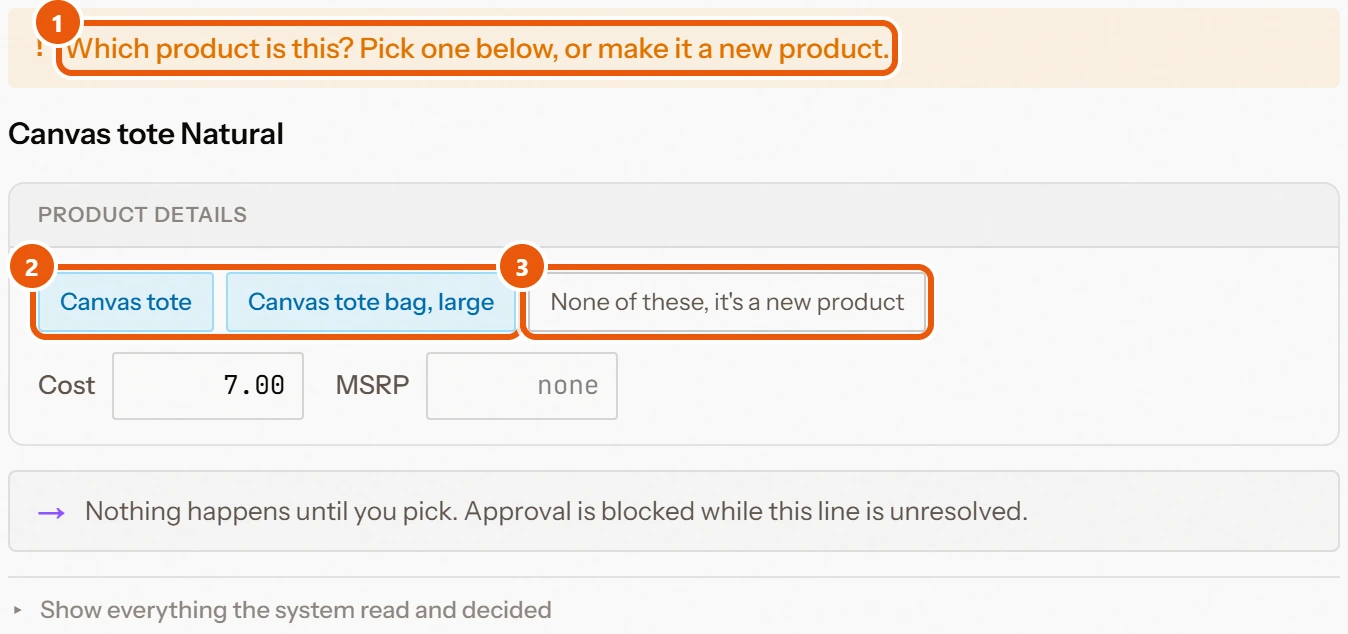
- 1Rebridge asks which product it is
- 2Click the right one
- 3Or make it a new product
Approve, reject and undo
Each line has Approve and Reject. To approve many lines at once, tick the box at the top of the list and choose Approve Selected. Edit Quantities changes quantities on the lines you selected.
Undo & Re-review reopens a line you already decided, up until the order is sent.
Approving or rejecting the last line that is waiting sends the order to Lightspeed straight away. Rebridge asks you to confirm first.
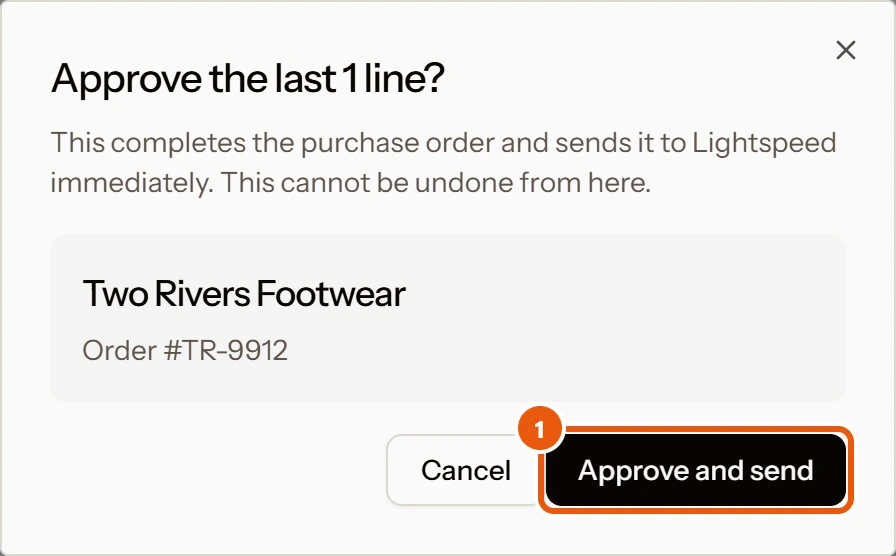
- 1This sends the whole order
Rebridge learns from your answers
Your approvals and corrections are remembered for the next document: the category you chose, how a vendor spells a size or color, and the vendor's color codes. When you match a vendor's product name to one of yours, tick the box to save it as an alias, and future documents with that name resolve on their own.
Questions
Why won't a line approve?
The message under Could not approve this line says why. The most common reason is a vendor that is not linked to one of your Lightspeed suppliers yet: pick the supplier at the top of the document, then approve again. If your catalog changed in Lightspeed after the match was made, the line asks you to review it again against the current catalog.
Does a person have to check every line?
No. Lines Rebridge is certain about are approved for you and marked Auto-Approved. The order itself is never sent until someone on your team sends it, or approves its last waiting line.
Can I change a decision after approving it?
Yes, until the order is sent. Open the line and click Undo & Re-review. Once the order is in Lightspeed, change it there.
Still need help?
Email support@rebridge.ai with the document name or purchase order number and what you see on screen. We reply within 24 hours. Or go back to the Help Center.